Narration, captions and a presenter, all in the Studio
Choose a narrator voice or upload your own, style word-by-word captions, and place a presenter on your scenes. All from the Studio sidebar.
How it works
Pick a voice
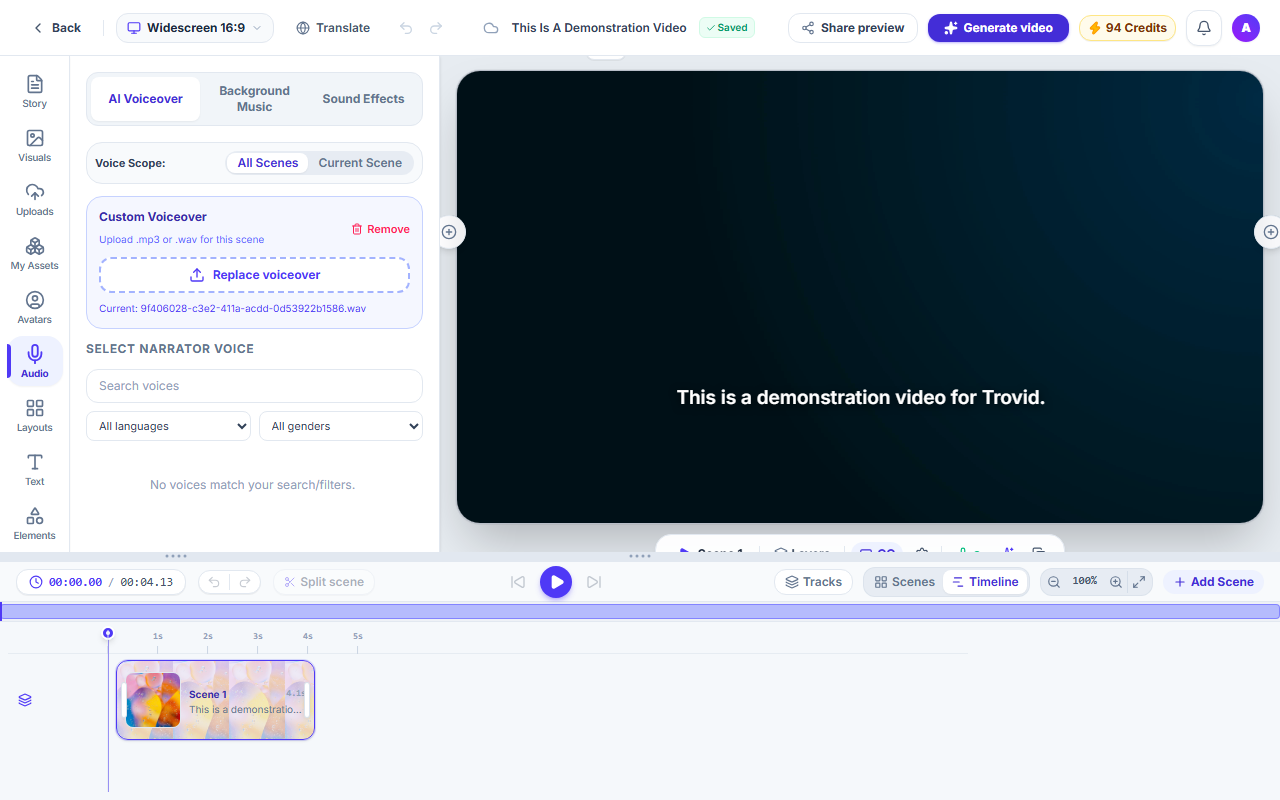
Search the voice list by language and gender, preview a voice, and apply it to one scene or to all scenes.
Style the captions
Choose a text style, change the font and colours, and save the result as your own style.
Add a presenter
Place a built-in avatar on a scene, or on every scene at once, and frame it as a circle or a rectangle.
What you get
A voice list with previews
Filter voices by language and gender, and listen before you apply one.
Your own recording
Upload an .mp3 or .wav voice-over for a scene instead of using an AI voice.
Narration that keeps up with edits
Scenes whose voice-over no longer matches the text are flagged, and you can update them together.
Word-by-word captions
Captions follow the voice word by word. Apply a style to every scene at once, or import and export SRT and VTT files.
Saved caption styles
Save a caption style to your account and use it again in any project.
Presenters from a gallery
Pick a presenter, filter by gender, and frame it as a circle or a rectangle.
Questions and answers
No. When narration is on, an AI voice-over is made with the video. Making the video uses credits, depending on the script length and the voice. You can also upload your own audio for any scene.
Yes. Premium voices are available only on plans that include them. Standard voices are available on every plan.
Yes. Captions can be switched off for a scene in the Captions editor.
Yes. Save it under a name in My Saved Styles. Saved styles belong to your account, so you can apply them in any project.
Not yet. Today you choose from the built-in presenters.
Try it on your first video
Start a project and open the Studio sidebar.